How to Turn Your iPhone Into A Dumb Phone - Free & Easy Methods
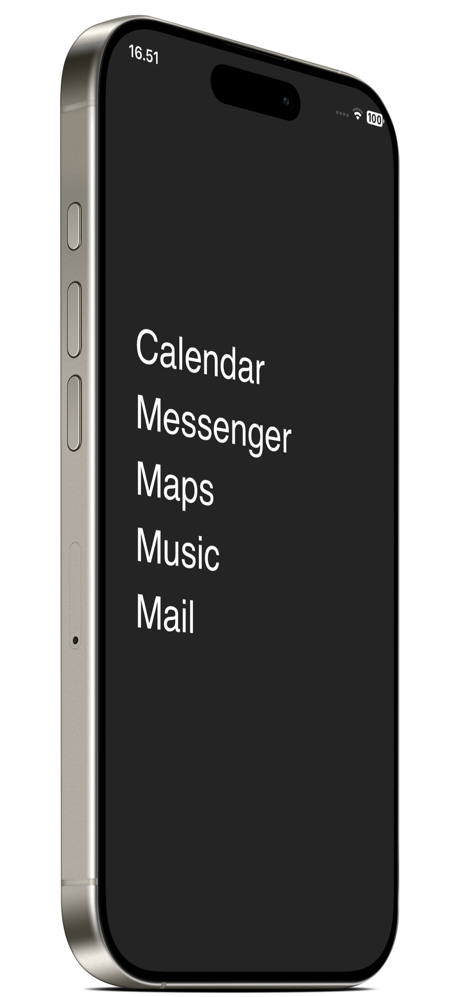
Introduction
Have you ever wished for a distraction-free phone that boosts productivity instead of stealing it? You check one email, then suddenly you’re swiping into endless social media, games, or Netflix.
So you wanted a dumb phone — a minimalist device that handles calls, messages, payments, and photos without the noise. However, you still can't ditch the good parts of a smart phone yet.
What if you could transform your iPhone into a dumb phone? Before we look into how to turn it into a dumb phone, let's define what is a dumb phone, so we can tackle the core of phone addiction.
What is a Dumb Phone?
A dumb phone (or minimalist phone) strips away unnecessary apps, notifications, and internet distractions, focusing solely on core functions:
- Calls & texts
- Basic camera
- Mobile payments (e.g., Apple Pay)
- No social media, games, or streaming
In other words, a dumb phone keeps only the core functions we use in day to day life as a tool, so you can have time to do what truly matters.
Step-by-Step to Turn Your iPhone into a Dumb Phone
1. Simplify Your Home Screen
There are a lot of dumb phone apps out there charging absurd amount for a simple home launcher app. Subscriptions for a static app for $6/month? Are you kidding me?
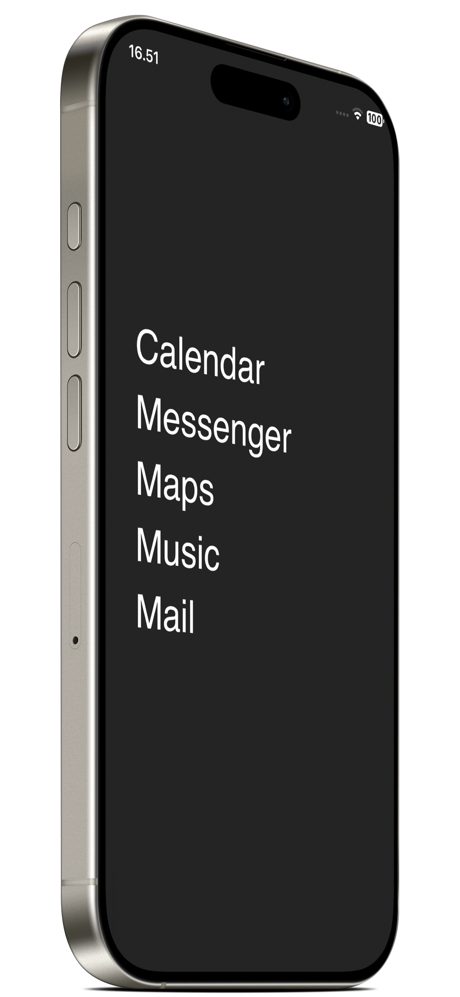
Luckily, we have Smile Launcher - a totally free minimalistic home launcher, no ads, not even IAP that do the exact same thing!
However, it wasn't an install and profit kind of app. You'll need to follow the steps it provides to achieve the looks of a text launcher.
Every "launcher" app on the App Store is a workaround, not like Android from the ground up. It is just a tappable widget and it is very limited with what you can do with the system, but at least it looks minimalistic.
Or, you can just delete everything on the homescreen — that's what I did.
2. Block Distractions with Focus Modes
Try to use different Focus Mode when you are in different settings.
For example, you can customize “Work” or “Personal” modes to allow only calls from key contacts, and silence non-essential notifications.
You can also hide apps in iOS 18. As they said, "out of sight, out of mind".
3. Install a Distraction-Free Browser
Ads are distractions. I personally use Brave browser — it is the best ad-blocking browser on iOS devices. You can also sync your account with desktop, so it works seamlessly.
Apart from that, you can also use Safari, where they introduced a new tool for you to "Hide distractions". It is located at the bottom bar beside the URL. It works similarly to ad blocking, but you have more control on what to hide. Say you want to block the "Shorts" button on YouTube — you can do that too.
But to be honest, web browsing is what sucks my time the most, but at least it is a better experience.
4. Ditch YouTube App for Zentube
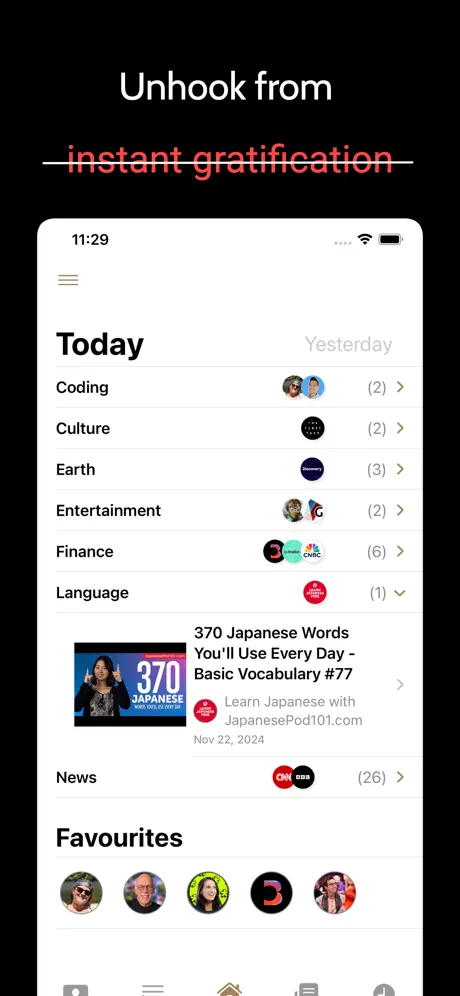
If you’re like me and enjoy learning on YouTube but often fall into the endless swipe and search loop, wasting hours, there’s an app called ZenTube designed to tackle this issue. ZenTube offers a distraction-free version of the official YouTube client, allowing you to filter out Shorts and categorize your favorite channels. This streamlined approach helps maintain focus and reduces unnecessary distractions.
Honestly, it is a must-have if you want to get away from the YouTube time-sucking black hole.
5. Delete All Non-Essential Apps
Not just those obvious social media apps like TikTok, Instagram, etc. I'm talking about everything you don't use on a daily basis but kept it there.
Every time you see an icon it goes to your brain — you have to decide to tap on it or not. This is exactly like a recommended page on a social media app. There's nothing intentional about it, but it gets in your way, and it shouldn't be there in the first place.
If you're skeptical about deleting what "might be useful" in "some situation", but you can't recall the last time you've used it — delete it. Chances are you don't really use it, plain and simple. If you ever need it, it's always just one search away in the App Store.
6. Use Screen Time
iOS has a built-in Screen Time app for you to set time limits for each app and website.
It is pretty useful for reminding you what you are doing but doesn't fully prevent it. You can just tap "remind me in..." and continue using the blocked app.
There are apps out there that provide a more proper "lock", but I haven't looked into it yet because the built-in Screen Time is kind of enough for me.
Limitations of Turning iPhone into a Dumb Phone
Finally, while these tricks help, iPhones aren’t designed to be “dumb.”
Workarounds like deleting apps, modifying the home screen, using specific apps, or using Screen Time require discipline.
But remember, it is you that's in control, not the phone. It can still be a smartphone, and you can still be a productive person.
Authors' Note:
If I were to really make a smartphone dumb, I would choose Android with Niagara Launcher. Ditch iPad and maybe use Remarkable 2 to jot notes — but that's another topic for another day.